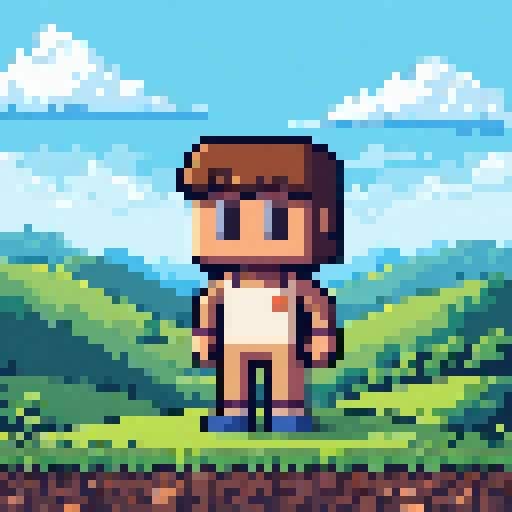
Introduction to Pixel Art
Pixel art is a digital art form where images are created at the pixel level, with each tiny square of color carefully placed to form a larger picture1.
This art style gained popularity during the early days of video games when the limitations of technology required artists to work with a limited number of pixels and colors2.
If you want to make game sprites, digital illustrations, or try a new art form, pixel art offers an accessible entry point for beginners.
In this guide, we’ll walk through the process of creating pixel art from start to finish. You’ll learn about the essential tools, fundamental techniques, and step-by-step procedures that will help you create your own pixel art. If you’d like to quickly jump into pixel art, use our online text to image pixel art generator.
What You’ll Need to Get Started
Before diving into pixel art creation, you’ll need to gather a few basic tools7. The good news is that pixel art doesn’t require expensive equipment or advanced artistic skills8.
Essential Tools for Pixel Art
- A computer, tablet, or mobile device – You can create pixel art on almost any digital device5.
- Input device – A mouse works fine, though some artists prefer drawing tablets.
- Pixel art software – There are several options available, from free to paid applications.
Popular Pixel Art Software Options
- Aseprite – A paid program specifically designed for pixel art and animations, highly recommended by professionals5.
- PiskelApp – A free online pixel editor that’s great for beginners and sprite creation.
- GraphicsGale – Available in both free and paid versions, excellent for pixel art animation.
- GIMP – A free, open-source alternative that can be configured for pixel art.
- Microsoft Paint – A simple option that comes pre-installed on Windows computers.
For beginners, PiskelApp or Microsoft Paint are good starting points because they’re free and have simple interfaces. As you progress, you might want to invest in more specialized software like Aseprite, which offers advanced features for serious pixel artists.
Understanding Pixel Art Fundamentals
Before placing your first pixel, it’s important to understand some fundamental concepts that will guide your pixel art creation.
What Makes Pixel Art Unique
Pixel art is distinct from other digital art forms because it embraces limitations.
Unlike modern digital painting where you can blend colors infinitely, pixel art requires you to work with individual pixels and limited color palettes. This constraint actually helps with creativity and forces artists to focus on the essentials of their design.
Resolution and Canvas Size
In pixel art, resolution matters. Common sizes for beginners include:
- 8×8 pixels – Extremely small, good for icons or very simple designs
- 16×16 pixels – Classic size for small game sprites
- 32×32 pixels – Offers more detail while remaining manageable
- 64×64 pixels – Allows for more complex designs
Remember that as resolution increases, the time required to complete your artwork grows a lot.
A 32×32 canvas has four times more pixels than a 16×16 canvas4.
For beginners, starting with smaller canvases (16×16 or 32×32) helps you learn the basics without becoming overwhelmed8.
Color Palettes in Pixel Art
Pixel art typically uses limited color palettes, which is part of its charm and distinctive look. When starting out:
- Choose a small palette of 4-16 colors.
- Include a range of values from light to dark.
- Consider using established palettes like those from classic game systems (NES, Game Boy, etc.).
Limited palettes help maintain the retro aesthetic and make your artwork more cohesive.
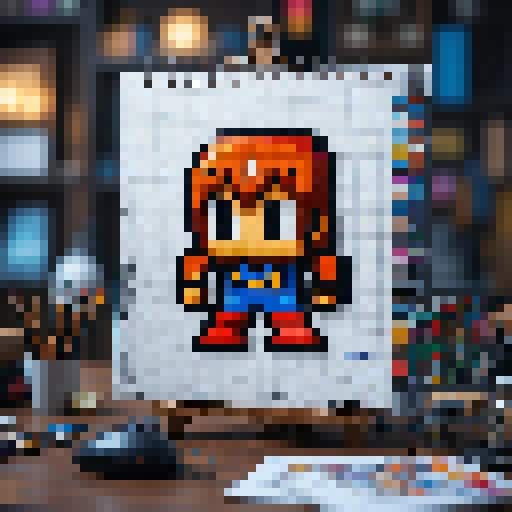
Setting Up Your Workspace
Now that you understand the basics, let’s set up your workspace for pixel art creation.
Configuring Your Software
Regardless of which program you choose, you’ll need to configure it properly for pixel art:
- Create a new canvas – Set your desired dimensions (start small with 16×16 or 32×32).
- Enable the pixel grid – This helps you see individual pixels clearly.
- Zoom in – Work at 400-800% zoom to see details clearly8.
- Disable anti-aliasing – Turn off any smoothing features that would blend pixels.
- Select the pencil tool – This allows for precise, single-pixel placement.
In Photoshop or similar programs, make sure to set the image interpolation to “Nearest Neighbor” to preserve hard pixel edges.
Setting Up a Color Palette
Before you start drawing, create or select a color palette:
- Choose a small set of colors (4-16 is ideal for beginners)9.
- Include a range from light to dark for each main color.
- Save your palette within your software for easy access.
Many pixel art communities share free palettes that you can download and use in your projects2.
Websites like Lospec offer curated color palettes specifically designed for pixel art10.
The Pixel Art Creation Process
Now that your workspace is ready, let’s dive into the step-by-step process of creating pixel art.
Step 1: Planning Your Artwork
Before placing a single pixel, take time to plan your artwork:
- Decide what you want to create – A character, landscape, item, etc..
- Gather reference images – Look at examples of similar subjects in pixel art style.
- Sketch your idea – This can be a rough drawing on paper or a digital sketch.
Having a clear vision will guide your pixel placement and save time in the long run.
Step 2: Creating the Silhouette
The first step in actual pixel placement is creating a silhouette or outline of your subject5:
- Choose a single color (often black) for your outline.
- Focus on the overall shape rather than details.
- Keep the silhouette readable – it should be recognizable even at a small size.
The silhouette is crucial because it defines the overall shape and readability of your artwork.
If the silhouette isn’t clear, the final piece won’t be either11.
Step 3: Blocking in Basic Colors
Once you have a solid silhouette, start filling in the basic colors:
- Select your main colors from your palette.
- Fill large areas with flat colors – don’t worry about shading yet.
- Focus on color separation between different elements.
This stage is about establishing the color foundation of your artwork. Think of it like coloring in a coloring book – you’re just defining the main color areas.
Step 4: Refining the Outline
After blocking in colors, revisit your outline to refine it5:
- Clean up any jagged or uneven lines.
- Pay attention to “jaggies” – stair-like patterns that can make lines look uneven.
- Use “perfect lines” with simple coefficients (1:1, 1:2, 2:1) for cleaner results4.
In pixel art, clean lines are essential for readability.
Take your time with this step, as it significantly impacts the quality of your final piece.
Step 5: Adding Basic Shading
Now it’s time to add dimension to your flat colors with basic shading:
- Decide on a light source direction (typically top-left for beginners).
- Add darker versions of your base colors to shadowed areas.
- Keep shading simple at first – just one level of shadow is fine for beginners.
Shading helps give your pixel art depth and dimension12.
Remember that less is often more in pixel art – you don’t need many shades to create effective lighting.
Step 6: Adding Highlights
To complete the basic lighting, add highlights to areas that would catch the most light:
- Use lighter versions of your base colors for highlighted areas.
- Place highlights opposite to your shadows, based on your light source.
- Use highlights sparingly – they should be the smallest part of your color scheme.
Highlights make your artwork pop and create a sense of volume and form. They’re especially important for shiny or reflective surfaces12.
Step 7: Detailing and Refinement
With the basic form and lighting established, it’s time to add details:
- Add small features that define your subject (facial features, textures, patterns).
- Use individual pixels for fine details.
- Step back regularly (zoom out) to check how your art looks at its actual size.
Details bring your pixel art to life, but be careful not to overdo it. In pixel art, every pixel counts, and sometimes less detail creates a clearer image.
Step 8: Advanced Techniques (Optional)
As you become more comfortable with the basics, you can explore advanced techniques:
Dithering
Dithering is a technique that creates the illusion of additional colors by placing pixels of two colors in patterns13:
- Start with a checkerboard pattern of two colors.
- Gradually space out the pattern as you move away from the transition area14.
- Use dithering to create gradients or texture effects15.
Dithering is especially useful when working with very limited color palettes, as it creates the illusion of more colors than you actually have13.
Anti-aliasing
Anti-aliasing involves adding intermediate-colored pixels to smooth jagged edges:
- Identify harsh edges or diagonal lines.
- Add pixels of intermediate colors along these edges.
- Use sparingly – too much anti-aliasing can make pixel art lose its distinctive look.
Anti-aliasing helps create smoother transitions between colors and can make your pixel art look more polished4.
Animation Basics for Pixel Art
If you want to bring your pixel art to life, animation is the next step16. Here’s a simple process to get started:
Step 1: Planning Your Animation
Before animating, plan out what you want to create:
- Decide on the type of animation (walk cycle, attack, idle, etc.).
- Break down the movement into key poses.
- Determine how many frames you’ll need.
Planning saves time and helps create smoother animations.
Step 2: Creating Key Frames
Start by creating the most important poses in your animation:
- Draw the starting position.
- Create the extreme positions (like the highest point in a jump).
- Save each key frame as a separate file or layer.
Key frames define the major points in your animation sequence.
Step 3: Adding In-Between Frames
Fill in the gaps between key frames to create smooth movement:
- Create frames that transition between your key poses.
- Pay attention to timing – more frames create slower, smoother movement.
- Use fewer frames for quick actions, more frames for slower ones.
The number of in-between frames determines how smooth your animation will be17.
Step 4: Testing and Refining
Once you have all your frames, test your animation:
- Play back your frames at the intended speed.
- Look for awkward transitions or movements.
- Adjust frames as needed to improve the flow.
Most pixel art software includes animation features that let you preview your animation16.
Common Pixel Art Styles and Approaches
Pixel art encompasses various styles and approaches, each with its own characteristics:
8-bit Style
The 8-bit style mimics the limitations of early gaming systems like the NES:
- Very limited color palettes (often 16-25 colors total).
- Simple shapes and minimal detail.
- Clear outlines and blocky forms.
This style is nostalgic and relatively easy for beginners to approach2.
16-bit Style
The 16-bit style reflects the capabilities of systems like the SNES or Sega Genesis:
- Larger color palettes (often 64-256 colors).
- More detailed sprites and backgrounds.
- More sophisticated shading and lighting effects.
This style offers more room for detail while maintaining the pixel art aesthetic2.
Isometric Pixel Art
Isometric pixel art creates a 3D-like effect using a specific perspective:
- Objects are drawn at a 45-degree angle.
- Uses specific pixel ratios to maintain consistent angles4.
- Creates depth without true perspective.
Isometric pixel art is popular for game environments and architectural designs.
Tips for Pixel Art Success
As you practice pixel art, keep these tips in mind to improve your skills:
Practice Regularly
Like any art form, pixel art requires practice to master:
- Set aside regular time for pixel art creation.
- Start with simple projects and gradually increase complexity.
- Try recreating existing pixel art to understand techniques.
Regular practice will help you develop muscle memory and an eye for pixel placement8.
Study Other Pixel Artists
Learning from established pixel artists can accelerate your progress:
- Follow pixel artists on social media platforms.
- Analyze how they approach different subjects and techniques.
- Join pixel art communities to share work and receive feedback.
Studying others’ work provides inspiration and technical insights18.
Embrace Constraints
Pixel art thrives on limitations, so embrace them rather than fight against them:
- Work with small canvases and limited palettes.
- Find creative solutions within these constraints.
- Remember that limitations often spark creativity.
The constraints of pixel art are what give it its distinctive charm and appeal.
Conclusion: Your Pixel Art Journey
Pixel art is a rewarding art form that combines technical precision with creative expression. By following the step-by-step process outlined in this guide, you’ve gained the fundamental knowledge needed to create your own pixel art. Remember that mastery comes with practice, so don’t be discouraged if your first attempts don’t match your vision.
Start small, be patient with yourself, and enjoy the process of placing each pixel with purpose. With time and practice, you’ll develop your own unique pixel art style and be able to create increasingly complex and beautiful artwork.
The pixel art community is welcoming and supportive, so don’t hesitate to share your work and seek feedback as you grow. Whether your goal is to create game assets, digital illustrations, or simply to enjoy a new creative outlet, pixel art offers a fulfilling artistic journey with endless possibilities for exploration and growth.
Latest Articles:
Citations:
- https://www.reddit.com/r/PixelArt/comments/5kxnlc/newbie_best_source_to_learn_pixel_art_for_a_super/
- https://artcorvibes.com/pixel-art/
- https://www.youtube.com/watch?v=W5pLJAQ-3XQ
- https://www.sandromaglione.com/articles/getting-started-with-pixel-art
- https://www.youtube.com/watch?v=lfR7Qj04-UA
- https://www.adobe.com/creativecloud/design/discover/pixel-art.html
- https://blog.felgo.com/game-resources/make-pixel-art-online
- https://www.instructables.com/Pixel-Art-A-Beginners-Guide/
- https://toxigon.com/color-theory-for-pixel-art
- https://newsroom.submitmypressrelease.com/2024/06/30/master-pixel-art-game-creation-step-by-step-guide_1057705.html
- https://www.toolify.ai/gpts/master-pixel-art-character-design-with-this-step-by-step-tutorial-151077
- https://www.toolify.ai/gpts/master-the-art-of-pixel-shading-151074
- https://www.reddit.com/r/PixelArt/comments/c4krcr/dithering_tutorial_for_beginners/
- https://www.spriteland.com/tutorials/pixel-art-dithering-tutorial-how-to-dither
- https://pixelparmesan.com/blog/dithering-for-pixel-artists
- https://www.youtube.com/watch?v=iWvfaiiVuDI
- https://www.youtube.com/watch?v=J1sFBDQt8J0
- https://www.creativebloq.com/illustration/examples-pixel-art-2132036
- http://www.pixilart.com/tutorials/pixel-art
- https://www.derekyu.com/makegames/pixelart.html
- https://www.artstation.com/blogs/calamity_kyle/wVE2/the-process-of-pixel-art-animation-a-beginners-guide
- https://www.reddit.com/r/gamedev/comments/kbq5a8/pixel_art_animation_tutorial_for_beginners_have_a/
- https://www.youtube.com/watch?v=QjksfdImmxg
- https://lospec.com/pixel-art-tutorials/tags/dithering
- https://www.boredpanda.com/pixel-art-and-environmental-facts-sammy-harper/
- http://rjanes.com/tutorials/introduction_to_pixel_art.php
- https://www.youtube.com/playlist?list=PLp99DFIAFv-xM8l6Uzmg83yvGRu6jMfid
- https://lospec.com/pixel-art-tutorials/tags/animation
- https://www.youtube.com/watch?v=KS837a-TFRc
- https://blog.maximeheckel.com/posts/the-art-of-dithering-and-retro-shading-web/